---
title: Creating a form for the Website Grader
description: 1. In your HubSpot dashboard, go to marketing -> Lead Capture -> Forms 2. Click the 'Create forms' button 3. Select 'Embed form' and click 'Next' 4. Select 'Blank template' and click 'Start' 5. Ad
---
[Skip to content](https://widget.grader.com/migration/knowledge/creating-a-form-for-the-website-grader#main-content)
English
Show submenu for translations

Open main navigation
Close main navigation
- English
Show submenu for translations
- Contact us
Contact us
How can we help you?
- There are no suggestions because the search field is empty.
1. [Help Center](https://widget.grader.com/migration/knowledge?hsLang=en)
2. [Website Grader](https://widget.grader.com/migration/knowledge/website-grader?hsLang=en)
# Creating a form for the Website Grader
1\. In your HubSpot dashboard, go to marketing -\> Lead Capture -\> Forms
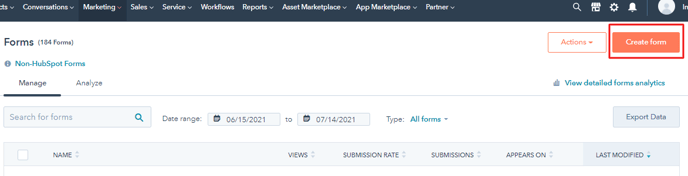
2\. Click the 'Create forms' button
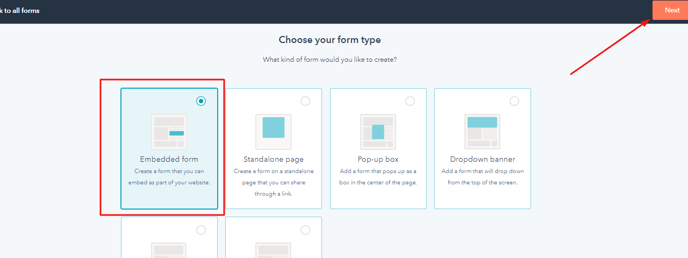
3\. Select 'Embed form' and click 'Next'
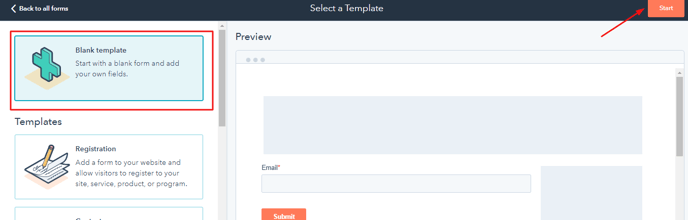
4\. Select 'Blank template' and click 'Start'
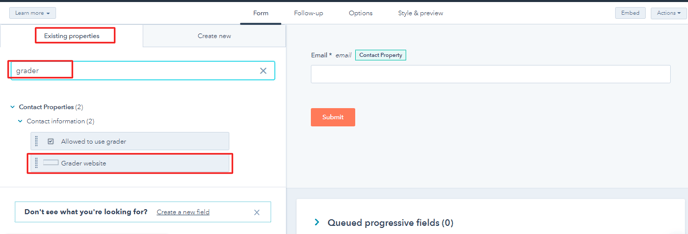
5. Add the "grader\_website" field by searching for 'Grader Website' in existing properties. You can update field name as desired.
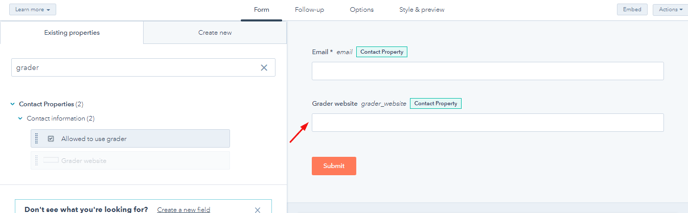
6\. Add any additional form fields if needed
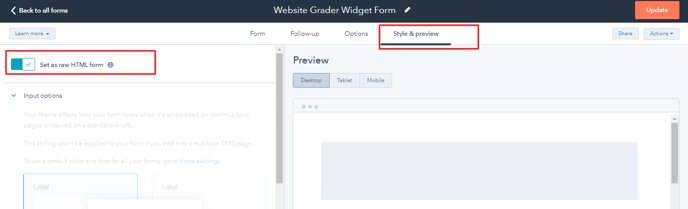
7. To use the default form styling, go to 'Style and Preview' and enable the option 'set as raw HTML form'
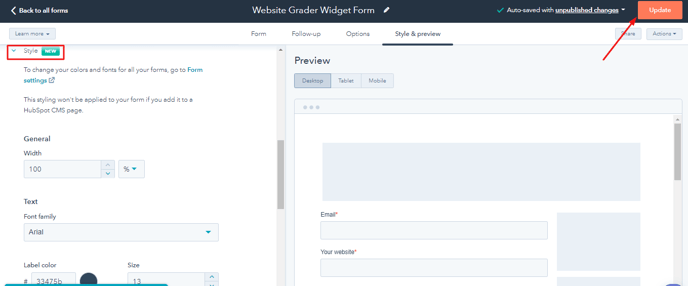
8\. To style the form yourself, disable the 'Set as raw HTML form' option, click 'style' and update the style settings. Once done, click the 'update' button to save your settings.
- [Website Grader](https://widget.grader.com/migration/knowledge/website-grader?hsLang=en)
[](https://widget.grader.com/?hsLang=en)
[mailto:email@email.com](mailto:email@email.com)
Copyright © 2026, HubSpot, Inc.